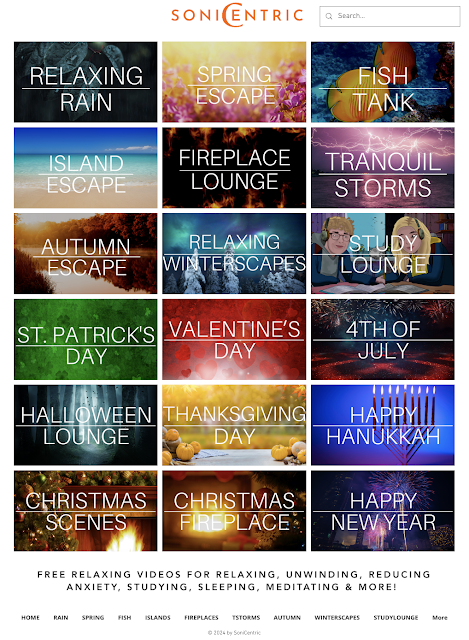
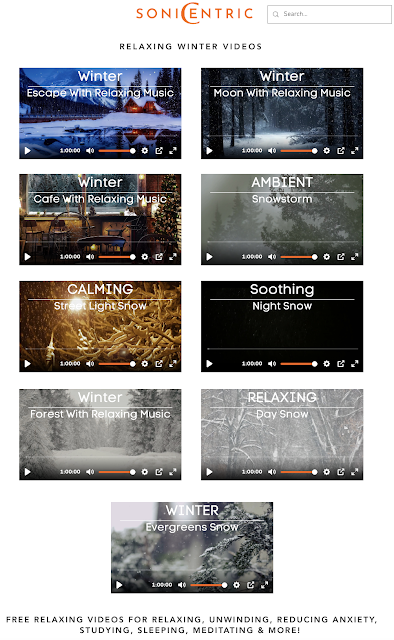
Have you ever used YouTube to pull up relaxing videos such as a crackling fireplace or snowfall to project while your students work quietly? There are so many different kinds of calm and tranquil videos available on YouTube but searching for them can take time. However, this new collection called Sonicentric created by Joey Edwin is going to save you so much time and give you a huge bank of videos to pull quickly.
This one stop shop isfree but ad supported. You can access it from Sonicentric.com, as an app for Apple or Android, as well as streaming on Samsung, Vizio, Roku, Tubi and many more. I love how organized and simplistic this collection appears and the themed videos are adorable. Students will love all of these!
As mentioned above, this resource is ad supported. Sonicentric used Google Ad Partners so there should never be any kind of alcohol, gambling or inappropriate content displayed 🤞. Each video usually starts with a 15-30 second ad. Half way through the videos another 15-30 second ad may pop up and there could be another at the end.
You and your students can enjoy relaxing and holiday themed background videos all in one place. Your classroom will definitely transform into a serene learning environment! Just project and turn the volume up.
Checkout my quick explanation and demonstration on YouTube:
It’s hard to believe, but this website has existed since 2010. While I’ve only been involved since 2015, I’ve seen the site grow tremendously in that time. The website now sees over 200,000 visitors per month, and we continue to publish a new article each week.
Have you ever wondered how we keep up with such a large, long-standing site? Our process has certainly evolved over time. When I started at the company, we used Trello to keep track of everything. Later, we moved to Asana, then Todoist. And since around 2021, we’ve been using Notion.
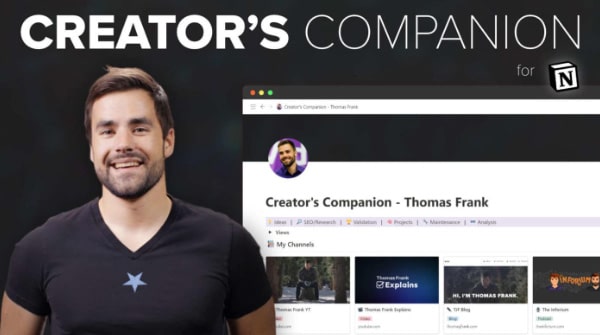
Of all the systems we’ve used, our Notion setup is the most heavily customized for our needs. Known as Creator’s Companion, the system is the brainchild of Thomas Frank (with significant contributions from Martin Boehme).
While Thomas designed this new system primarily to manage our YouTube channel, it’s also proved immensely useful for managing this website. Recognizing this, I thought it would be interesting to show how we use Notion to direct our monthly content production.
I’ll start with a look at how we come up with article ideas. From there, I’ll move into the process of using Notion to help research, write, and edit an article. Finally, I’ll show you the role Notion plays in our post-publish tasks.
If you’re looking for a better way to manage your growing website, this article is for you.
Step 1: Idea Generation
Around the end of each month, I meet with Martin (our director of operations) to brainstorm article topics.
During the meeting, I record promising topics in the “Ideas” section of our team’s Notion. I also use this area to record any article ideas I come up with outside of meetings.
From there, we develop the article ideas further and decide which ones will be the best fit for our audience. We do this through a combination of keyword research (using Ahrefs) and intuition.
With the topics decided, I can move on to the next step: planning the month’s content.
Step 2: Planning and Deadlines
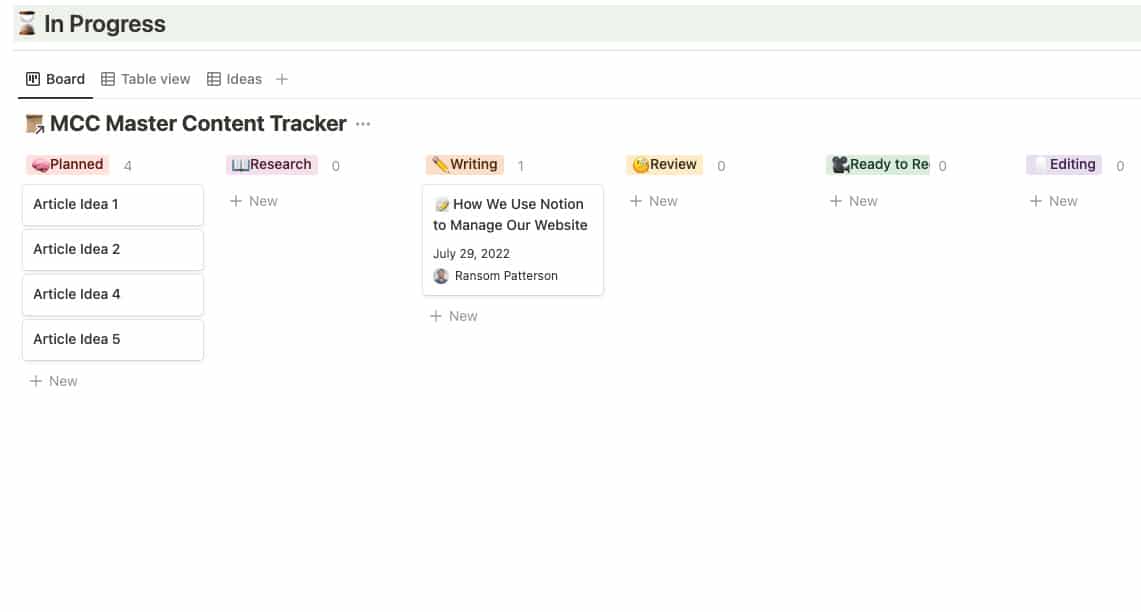
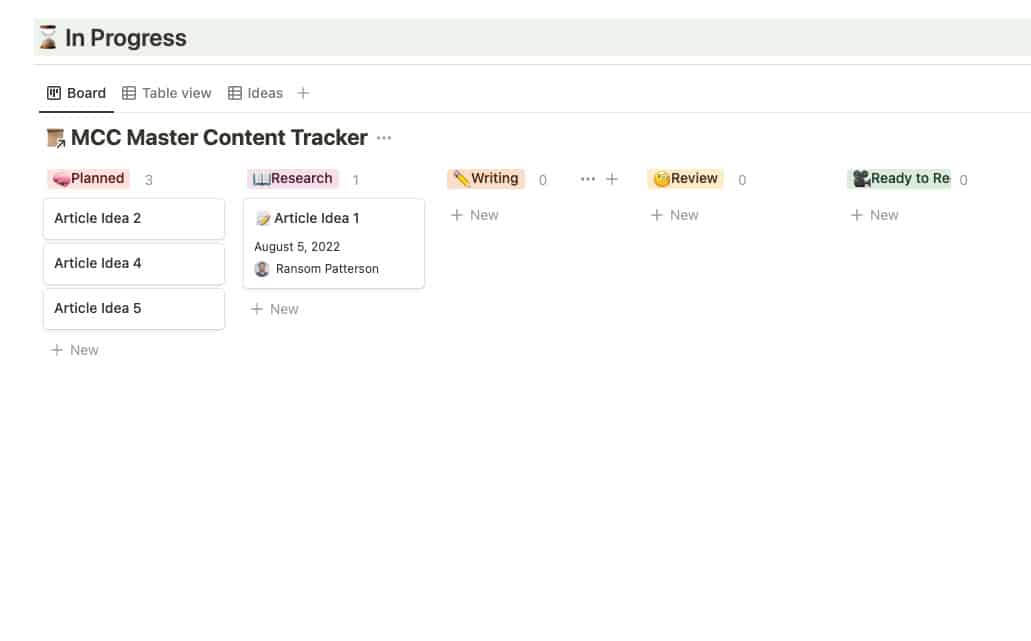
Once Martin and I have picked the article topics for the month, I move each article’s card from the “Ideas” to the “Planned” section in Notion:
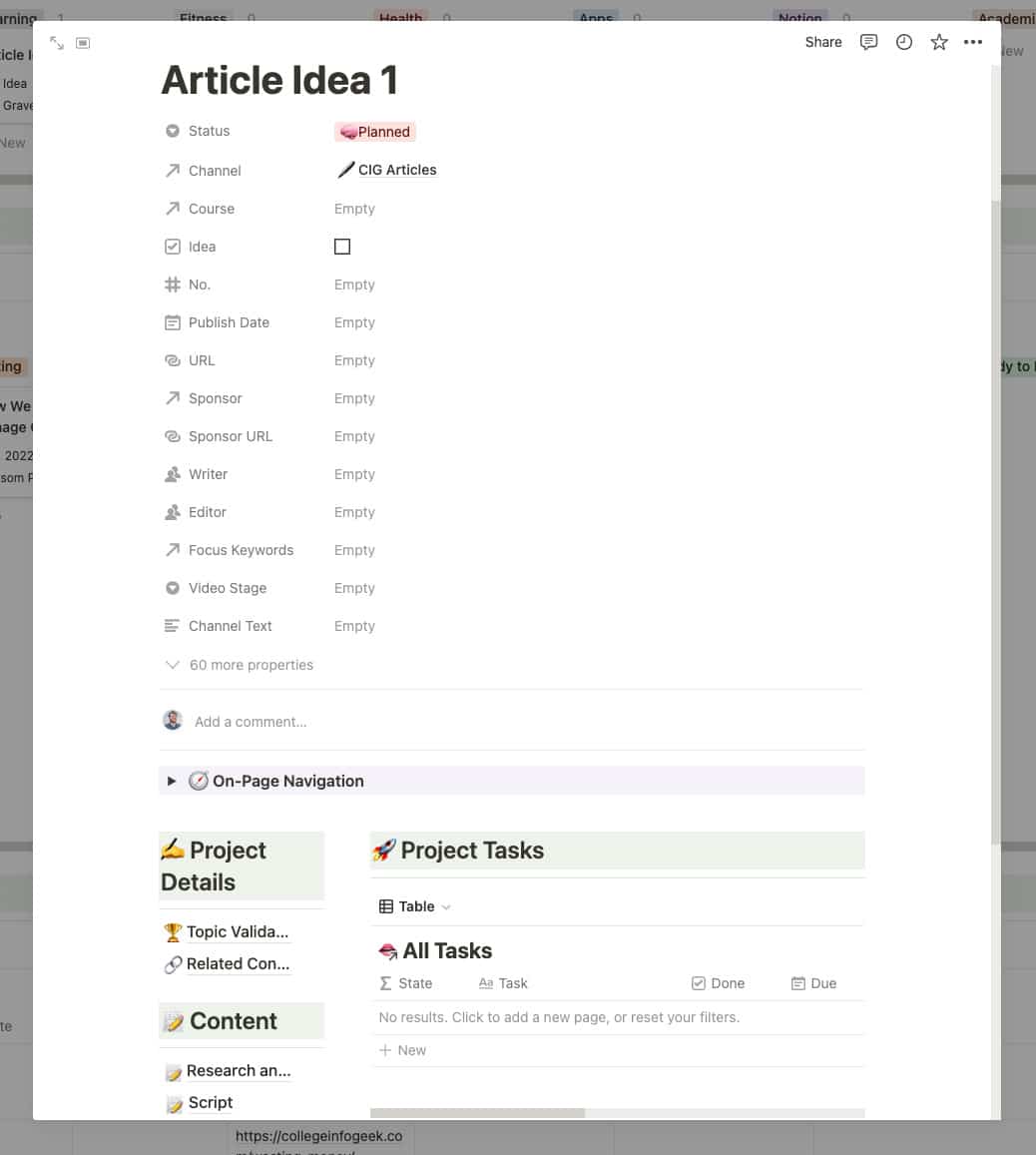
I then go into each article’s card and choose the “CIG Article” template. This automatically creates several sections that I’ll use going forward, including an area for research and another for tasks related to the article:
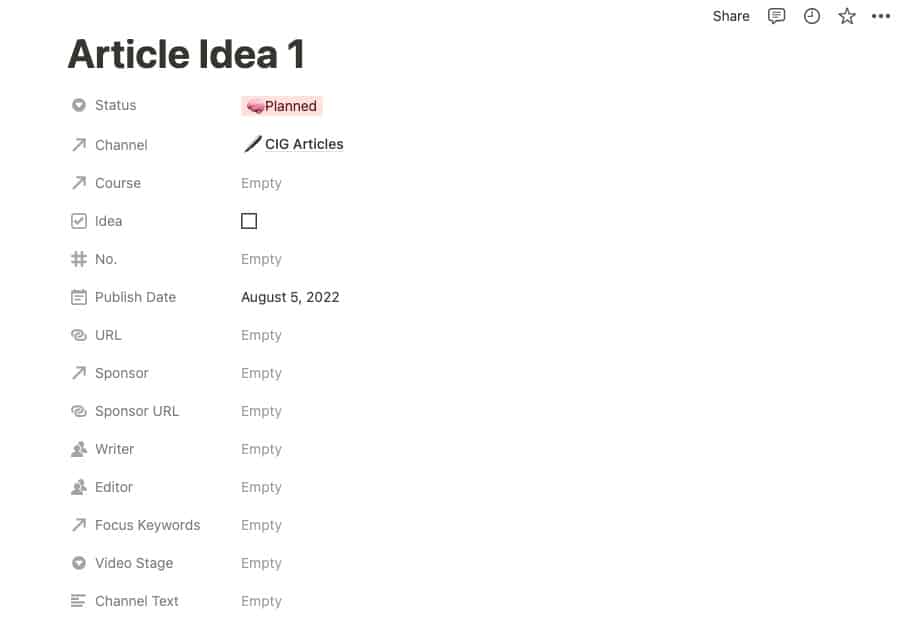
After I’ve applied the article template, I choose a publication date. This is my deadline going forward:
Once I’ve picked a publish date, I can move on to the next step: assigning article tasks to other team members.
Step 3: Assigning Article Tasks
Every article we publish also gets shared on our Twitter and Pinterest accounts. But before I can share the posts on social media, I need corresponding share images. This is where our designer Ashley comes in.
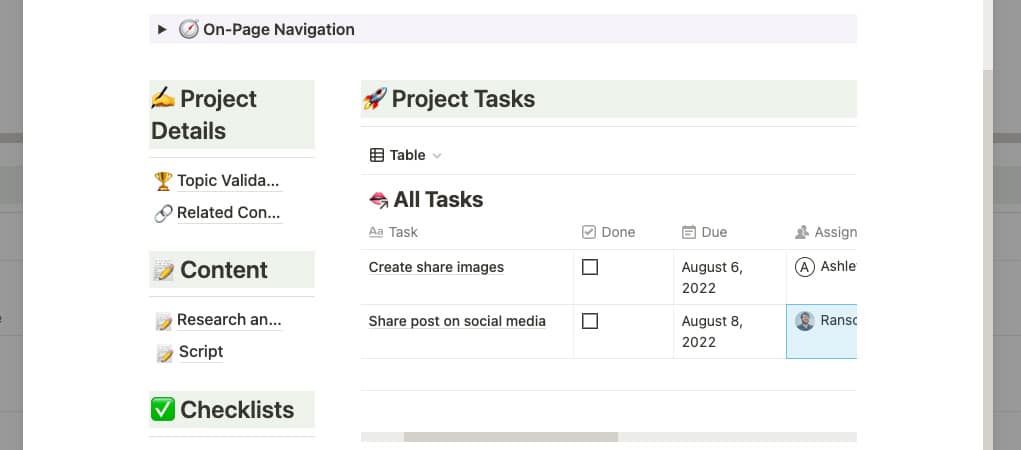
To let Ashley know which share images she needs to create, I assign a task in Notion called “Create share images.”
Since the article template includes a “Tasks” section, this is a quick process. All I have to do is name the task, set a due date, and then assign it to Ashley.
After I assign the image creation task to Ashley, I assign myself a task to share the post on social media.
The result looks like this:
After I’ve assigned the tasks for each article, I move on to the next (and longest) process: research, writing, and editing.
Step 4: Keeping the Articles on Track with Notion
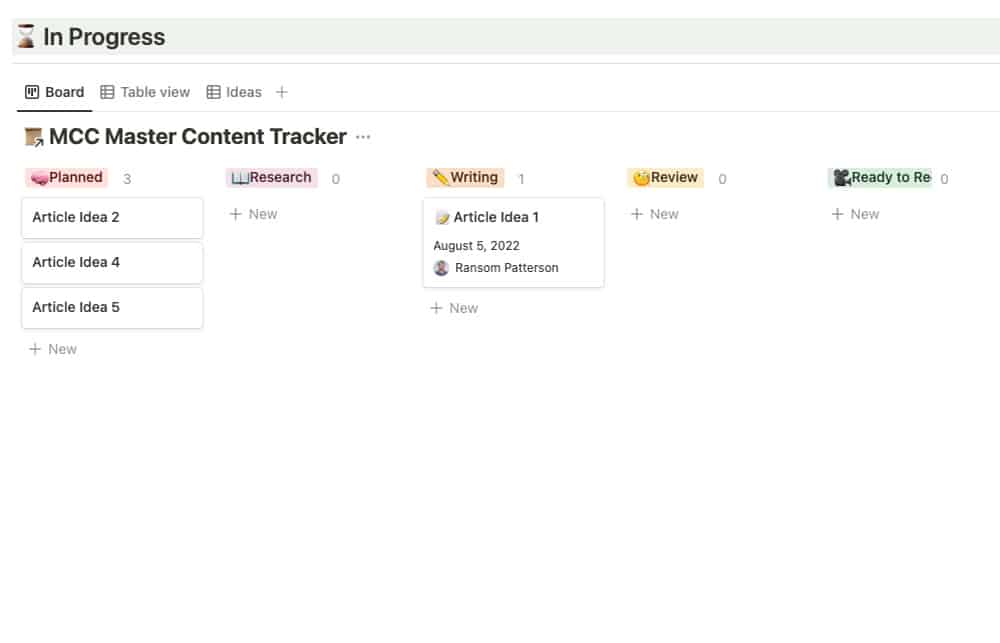
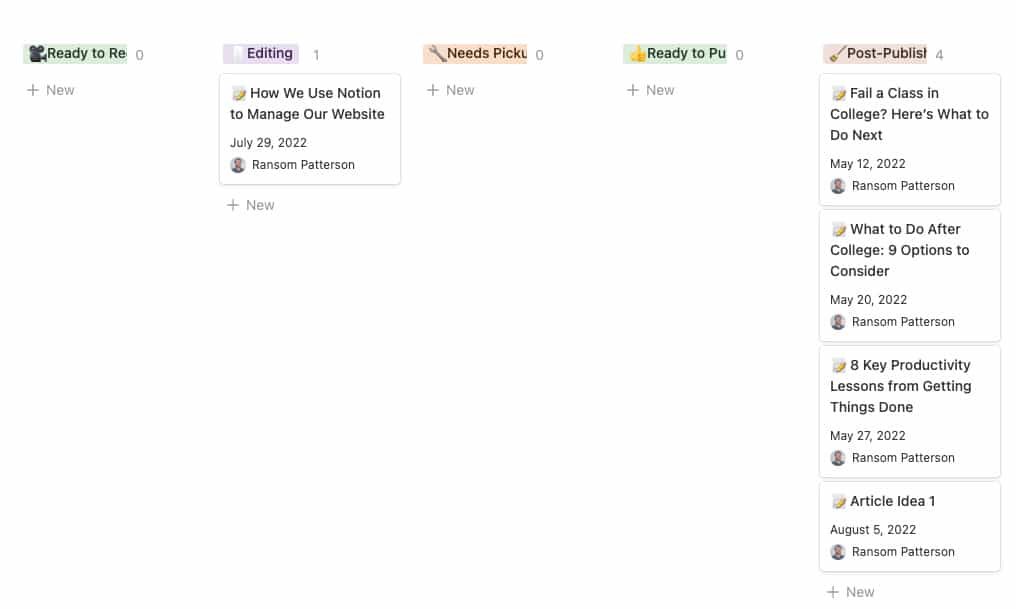
Each Monday, I check Notion to find the article that’s due at the end of the week. I then move that article’s card to the “Research” section in Notion:
The research process typically takes me a couple of days, though sometimes longer if the article topic is especially technical. As I research, I record all my notes inside the “Research/Outline” section of the article’s card in Notion.
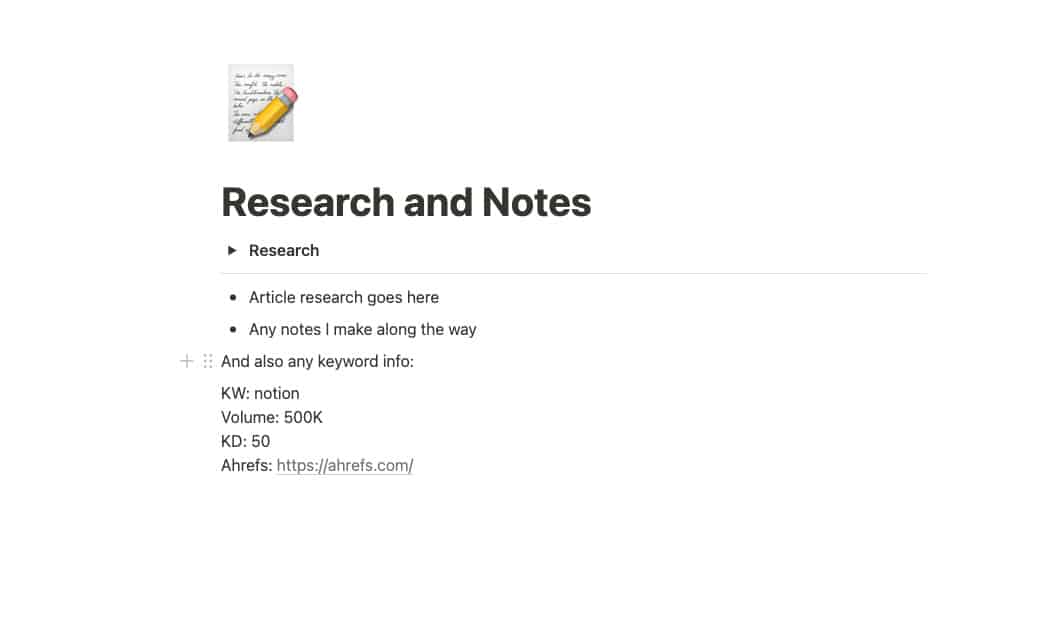
These notes include info for the article and any keyword research data I’ve gotten from Ahrefs:
After I’ve finished the research phase, I move the article’s card to the “Writing” column. And then I write the article, which typically takes a couple of additional days:
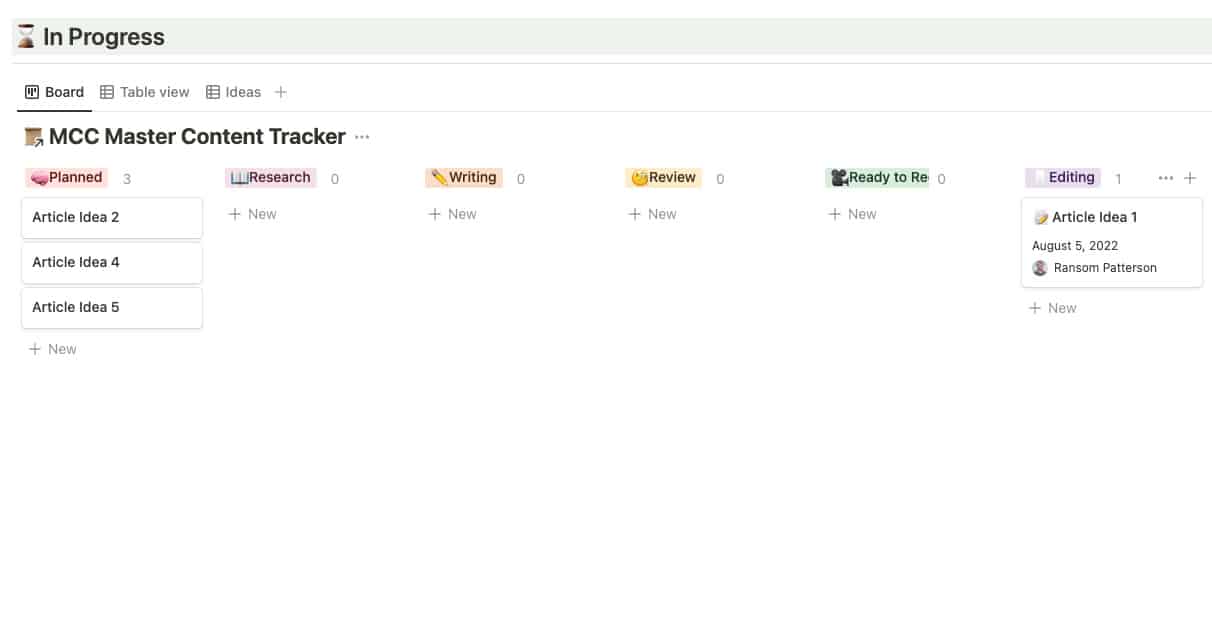
When the writing is over, I move the article card to the “Editing” column:
Since I edit the articles myself, this is mostly for my reference. But if I were managing a team of writers, I could use this Notion column to quickly see, at a glance, which articles were ready for me to edit.
Tracking my progress in Notion this way also lets my manager see that everything’s on track without having to exchange emails or Slack messages.
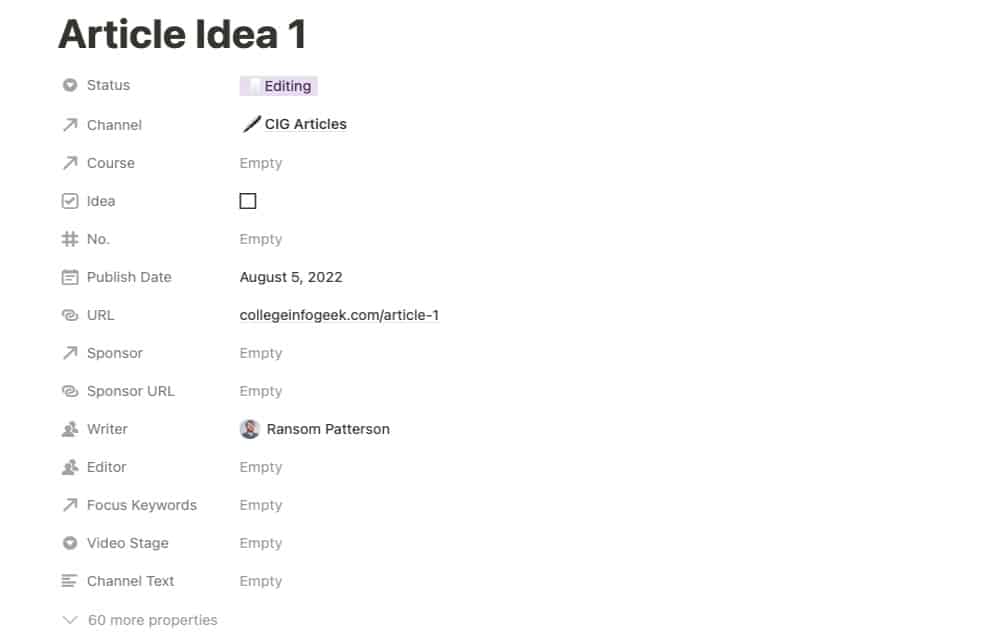
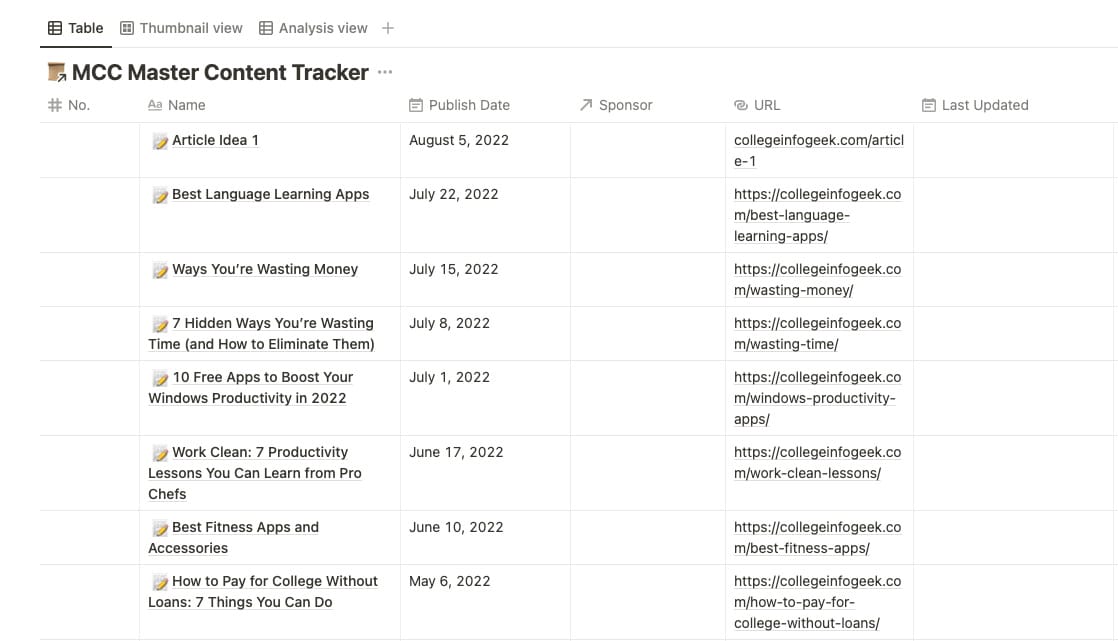
When the edits are done, I publish the article. Then, I paste the link to the live article in the URL field of the article’s Notion card:
With that done, it’s on to the final set of tasks.
Step 5: Post-Publish Tasks
Now, I move the article card to the “Post-Publish Checklist” column:
Unlike videos, which have an extensive list of post-publish tasks, the checklist for articles is short. It consists of the two tasks I mentioned earlier: creating the share images and sharing the post on social media.
After Ashley creates the share images, she uploads them to Google Drive. I then download the images, upload them to Buffer, and share the post on Twitter and Pinterest.
Finally, I move the article’s card to the “Completed” column. This archives all information related to the article in a different area of our team’s Notion:
I repeat the above process each week until a new month rolls around. And then it’s back to the brainstorming phase.
Improve Your Content Production Process with Creator’s Companion
I hope this article has shed some light on how to better manage your blog using Notion.
If you’re interested in using the system I discuss in this article to handle your content production, you can learn more about it below:
Tired of juggling note-taking apps, to-do lists, and spreadsheets while making YouTube videos and blog posts? Me too.
Creator’s Companion is the exact system my team and I use to run my 2-million-subscriber YouTube channel, the blog you’re currently reading, and all my other channels and social media profiles.
We earn a commission if you click this link and make a purchase at no additional cost to you.
If you’ve ever tried to learn a new language, you know that it’s far from easy or straightforward.
Fortunately, we have a lot more language learning tools available than our ancestors (who basically just had books and other humans to learn from).
Indeed, we have an overwhelming number of resources available. Hardly a day goes by without me hearing about a new language learning app that promises to revolutionize the learning process or offer a quick path to fluency.
But no matter how great (or how expensive) the app you use, gaining fluency in a language requires lots of study and practice. You can do things to make your study time more effective or even more fun, but there’s no substitute for putting in the hours.
Having said that, language learning apps can play an important role in your journey to fluency. And not all of them are created equal.
In this article, we take a look at six of the best. Whether you’re looking to practice vocab or find a private teacher, there’s an app for you on this list.
Overview: The best free app for learning the basics of a wide variety of languages.
Price: Free (with ads). For $6.99 / month, you can remove ads and unlock additional practice options.
Platforms: Android, iOS, Web
If you’ve looked into learning a language at all, you’ve probably come across Duolingo. The app launched in 2011, and it’s continued to grow ever since.
Of all the apps on this list, Duolingo offers the most learning content for free. It combines listening practice, vocabulary lessons, grammar info, and even speaking practice. And as long as you don’t mind a few ads, you get all of this without paying a dime.
Duolingo also boasts a vast number of languages. Currently, you can use the app to learn:
Arabic
Czech
Danish
Dutch
Esperanto
Finnish
French
German
Greek
Haitian Creole
Hawaiian
Hebrew
High Valyrian
Hindi
Hungarian
Indonesian
Irish
Italian
Japanese
Klingon
Korean
Latin
Mandarin Chinese
Navajo
Norwegian
Polish
Portuguese
Romanian
Russian
Scottish Gaelic
Spanish
Swahili
Swedish
Turkish
Ukrainian
Vietnamese
Welsh
Yiddish
What’s more, Duolingo lets you learn languages you won’t find in other language learning apps:
There are languages with a small number of speakers, such as Yiddish and Navajo.
There are dead languages such as Latin.
And there are even fictional languages such as Klingon and High Valyrian.
If you’re trying to learn any of these languages, Duolingo is the place to begin.
The only downside of Duolingo is its focus on translation. Even when you reach higher levels, the app continues to present lessons in English. This can impede your ability to learn to think in the language you’re learning.
But if you’re a complete beginner, Duolingo is still a great place to start your language learning journey (especially since it’s free).
Overview: A fantastic app for learning vocabulary in several widely-spoken languages.
Price: $9.99 / month after a 14-day free trial
Platforms: Android, iOS, Web
Many language courses focus too much on grammar in the beginning. And while grammar is important for learning to speak, vocabulary is far more important for communicating.
If you know a bit of vocabulary, you can make yourself understood (even if you sound a bit childlike in the process). The same is not true if you know grammar but lack essential vocab.
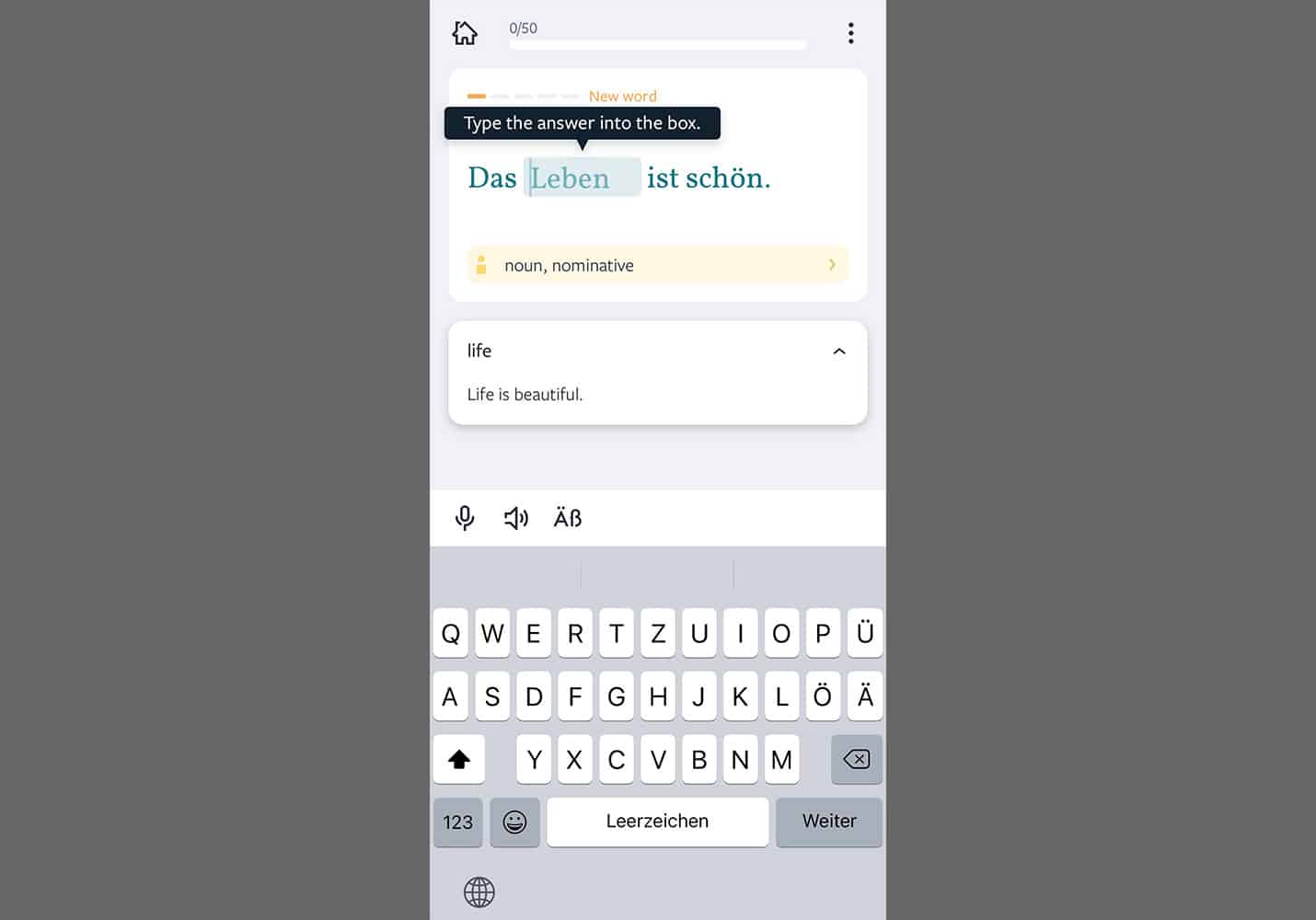
Recognizing this, Lingvist focuses on vocabulary. The app starts by teaching you the most common words in the language you’re learning. The goal is to learn vocab that covers “80% of everyday scenarios.” This way, you don’t waste your time learning words you’re unlikely to use.
Lingvist also uses spaced repetition to help you learn more efficiently. The app quizzes you on words right before you’re about to forget them, which is the most optimal way to memorize information.
Plus, Lingvist will focus on the words you struggle with, not wasting your time reviewing vocabulary you already know. If you’ve used a flashcard app such as Anki, this approach will be familiar.
The only disadvantage of Lingvist is its limited selection of languages. Currently, the app supports:
Dutch
French
German
Italian
Portuguese
Russian
Spanish (Castilian & Latin American)
If you’re learning one of these languages, Lingvist is a great option. But prospective learners of other languages will need to look elsewhere.
Overview: The best app for learning to pronounce, spell, and think in another language.
Price: $9.99 / month after a 14-day free trial. Live coaching is available for an additional fee (select languages only).
Platforms: Android, iOS
Full disclosure: I backed the original Fluent Forever app project on Kickstarter, and I currently use the app. However, I don’t receive any compensation for mentioning it.
Do you want to be mistaken for a native speaker? If so, mastering pronunciation in your target language is essential.
Proper pronunciation will also improve your listening comprehension, making it far easier to communicate with native speakers and enjoy media in the language you’re learning.
Recognizing this, Fluent Forever focuses on teaching you to pronounce (and spell) your target language first. Only once you’ve mastered these basics do you move on to learning vocabulary and grammar. This approach is based on a method that founder and polyglot Gabriel Wyner developed in his book Fluent Forever.
In addition to teaching you pronunciation and spelling, Fluent Forever uses a frequency-based approach to learning vocabulary. That is, you learn the most common words first.
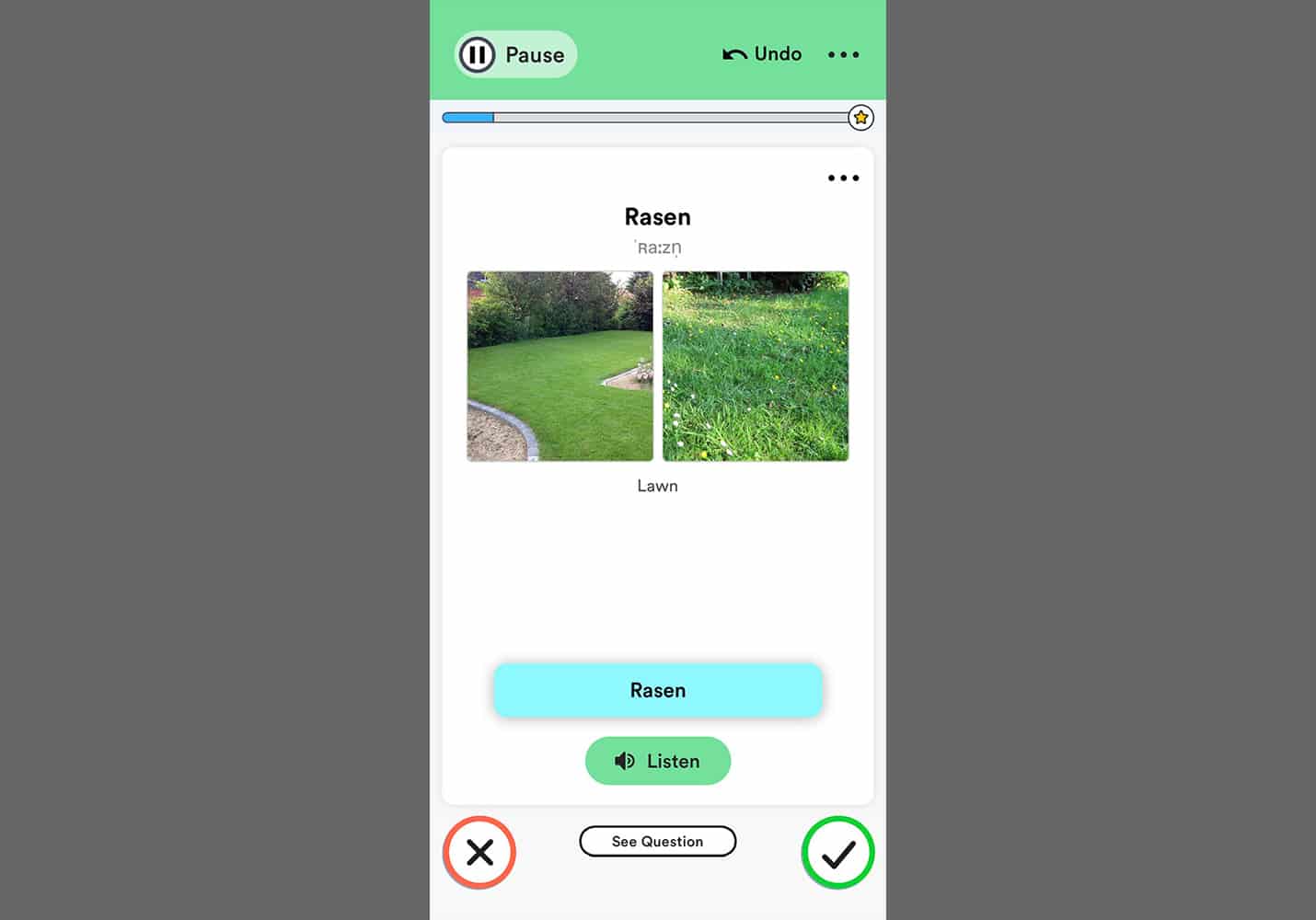
The app also steers you away from translation and teaches you to think in the language you’re learning. It does this with picture-based flashcards that you create yourself. Making the language more personal in this way improves your learning and retention.
Fluent Forever currently supports the following languages:
Dutch
French
German
Italian
Japanese
Korean
Mandarin Chinese
Portuguese (Brazilian)
Russian
Spanish (Latin American & Castilian)
In addition to the app-based learning, Fluent Forever also offers live coaching with professional teachers (for an additional monthly fee).
Coaching is only available in select languages as of this writing, but the developers are working to expand coaching options based on user interest.
Overview: An app that lets you find language teachers for one-on-one, online lessons.
Price: Varies (each teacher sets their own rate).
Platforms: Android, iOS, Web
Traditionally, live language lessons were prohibitively expensive. But thanks to the power of the internet and video chat platforms, one-on-one lessons are now cheaper and more accessible than ever before.
iTalki has played a big part in this language education revolution.
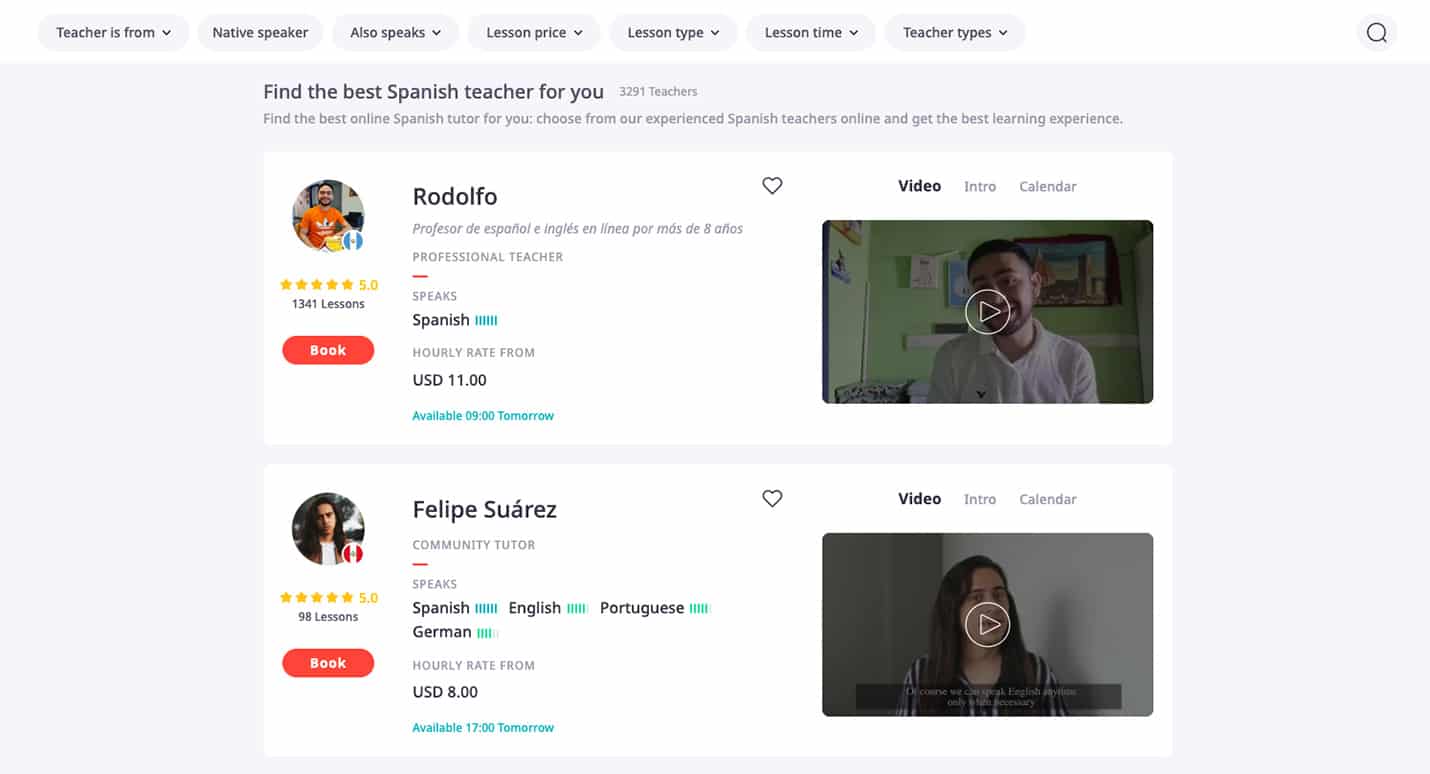
Unlike the other apps on this list, iTalki doesn’t offer language lessons itself. Instead, it’s a place to find and book lessons with live teachers. Teachers on iTalki range from “community tutors” without formal training to professional instructors with decades of experience.
To find a teacher on iTalki, all you have to do is sign up for an account. Then, you can filter prospective teachers based on language, price, and even level of experience. From there, you can typically book a trial lesson for a small fee. This helps you and the teacher decide if you’ll work well together.
The cost of lessons on iTalki varies. Each teacher sets their own rate, and some offer discounts for purchasing multiple lessons in advance. Currency exchange rates and differences in cost of living also mean that some teachers will be cheaper than others.
iTalki claims to offer lessons in over 150 languages. More popular/widely spoken languages will tend to have more teachers available. Still, it’s possible to find teachers of obscure or even endangered languages such as Irish Gaelic or Aramaic.
Overview: A community-driven Q&A platform for language learners.
Price: Free (limited features). For $4.49 / month, you can remove ads, search for questions, and play an unlimited number of audio/video answers.
Platforms: Android, iOS, Web
Apps like Duolingo, Fluent Forever, and Lingvist are great for learning the basics of a language. Eventually, however, you’ll have questions about your target language that these platforms just can’t answer.
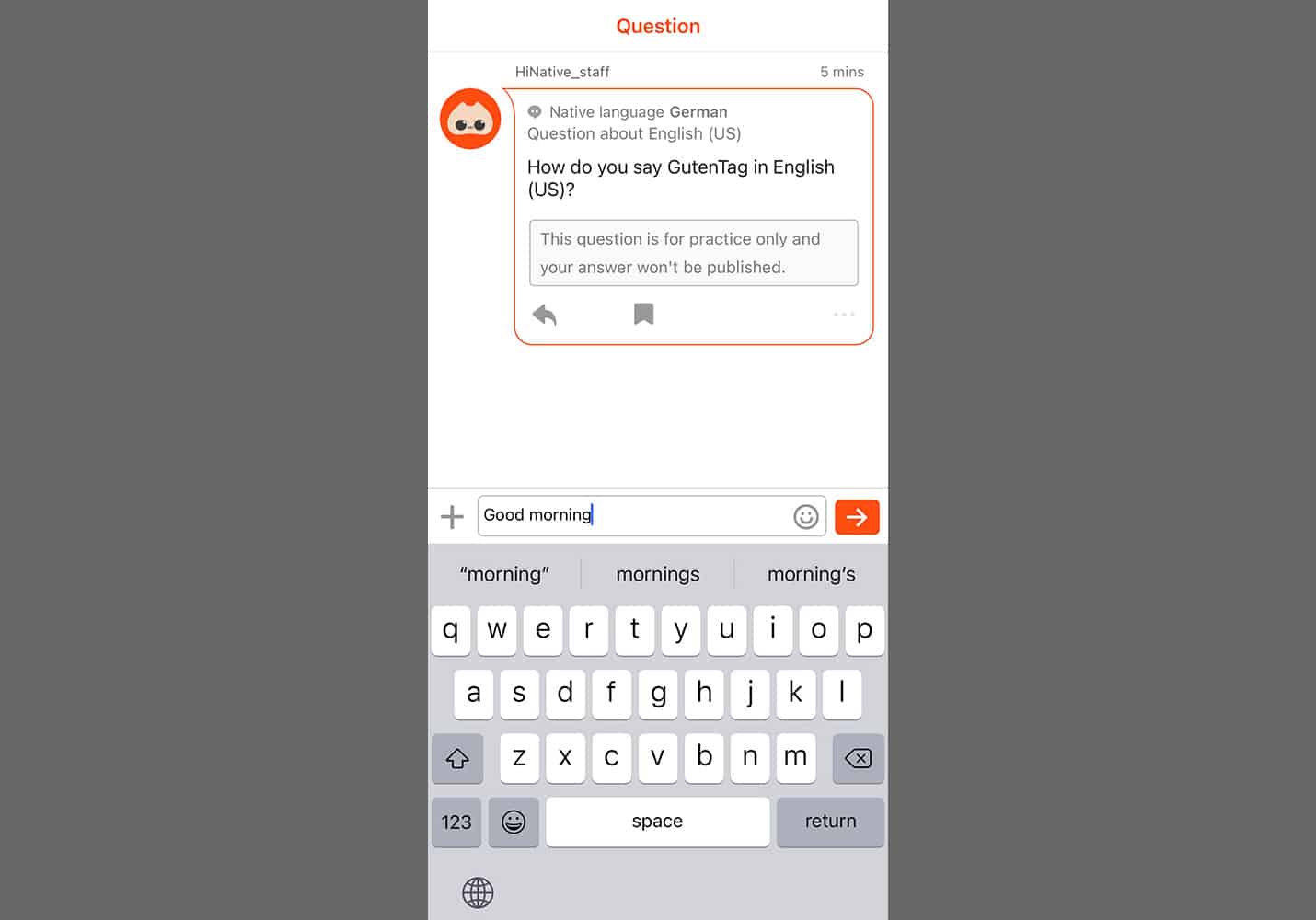
In this case, your best option is to ask a teacher. But hiring a teacher can be expensive (and excessive for one-off questions). As an alternative, consider HiNative. This platform lets you post questions about a language and get answers from native speakers.
For instance, let’s say you’re unsure about the meaning of a particular slang term. HiNative is the perfect place to post your question and get answers you’d never find in a textbook.
Even better, you can ask most questions for free (though you can pay to boost the visibility of your questions and get a response faster).
In addition to posting questions about vocabulary and grammar, you can also get feedback on your writing or even your pronunciation.
Just be sure to take some time to answer questions about your native language. HiNative is a community-driven platform, after all, and it only works if all users contribute.
HiNative currently supports over 110 languages. Though, as with iTalki, more widely spoken or popular languages will tend to have more contributors.
Overview: The best app for learning to read Japanese.
Price: $9 / month. A lifetime subscription is also available for a one-time payment of $299.
Platforms: Web
This last app comes courtesy of a suggestion from Martin (our operations lead, web developer, and an avid Japanese learner).
WankiKani addresses one of the biggest challenges for students of Japanese: reading. Japanese uses a writing system unlike any other, and it’s notoriously difficult and confusing. That is, until you start using WaniKani.
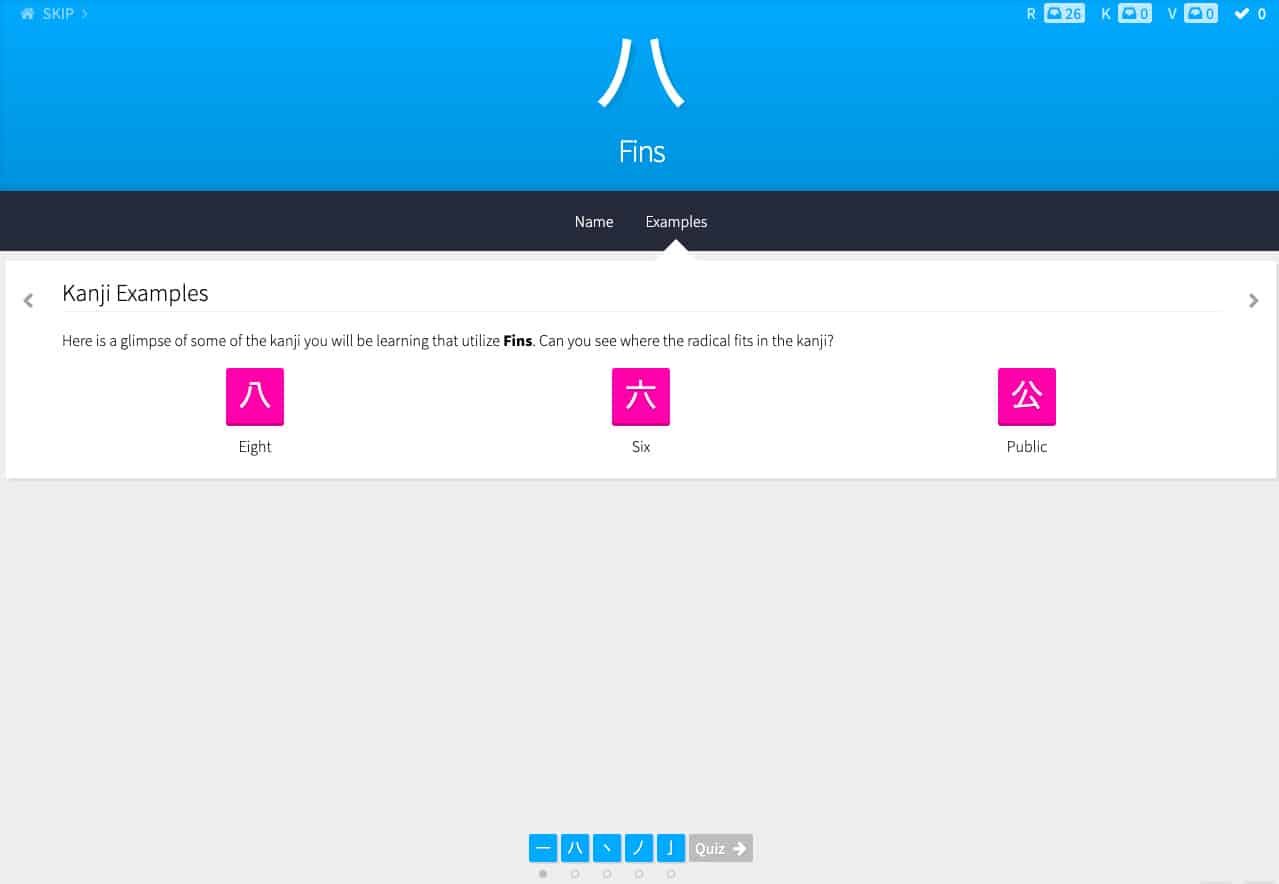
The app combines mnemonics and spaced repetition to teach you 2,000 kanji and 6,000 vocabulary words in just over a year. Even better, the first three levels of learning in the app are free (no ads, time limits, or other restrictions).
Great as all of this is, be aware that WaniKani is not a resource for learning to speak Japanese. For that, Martin recommends iTalki or Duolingo (particularly Duolingo Stories, which focus on listening skills).
Finally, WaniKani typically does a New Year’s sale on their lifetime membership. This can save you a fair bit of money if you plan to stick with the app long-term.
Language Learning Apps Are Only the Beginning
If you’re learning a new language, the apps on this list are a great place to start.
However, an app can only get you so far. To truly learn a language, you need to spend lots of time practicing and ultimately using it. Fortunately, this process is a lot of fun once you’re past the beginner stage.