Category: Google

  • 10 Tips for Creating a Student Centered Classroom

    10 Tips for Creating a Student Centered Classroom

    3. Shift from Autopsy Grading to Continuous Feedback

    Traditional grading often acts as a terminal event that ends the learning process. It is like an autopsy because it tells you what happened to the patient after it is too late to save them. Student centered assessment focuses on providing actionable feedback while the learning is still happening. This approach encourages students to view their work as iterative and values the process of revision over the final grade.

    Chromebook Tip

    Utilize the Private Comments feature in Google Classroom or the Suggestion Mode in Google Docs. Engage in a back and forth dialogue while students are still cognitively wrestling with the work. You might even consider withholding the final score until the student has responded to your feedback or made a revision.

    4. Implement Inquiry Based Challenges

    Rote lectures often answer questions that students have not yet asked. A student centered approach reverses this dynamic by using the Five Es model (Engage, Explore, Explain, Extend, and Evaluate). By starting with a provocation or a driving question you create a need to know that motivates students to seek out answers. This anchors the direct instruction that follows in a meaningful context.

    Chromebook Tip

    Use a Google Form as an Inquiry Log. Before a unit starts have students submit their questions and hypotheses about the topic. As they learn they can return to the form to update their thinking or add new questions. This creates a digital record of the intellectual journey of the student.

    5. Design a Physical and Cultural Ecosystem

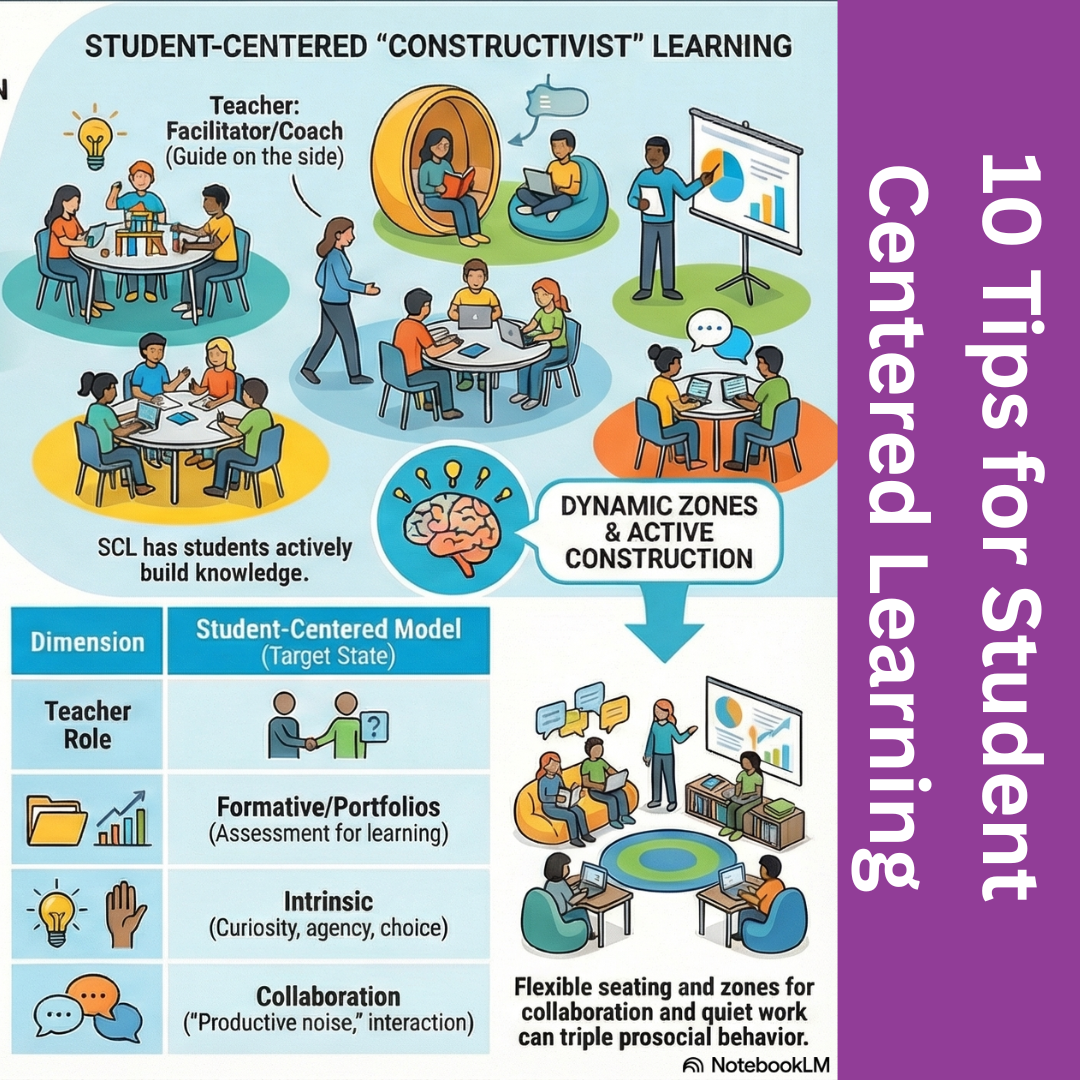
    The physical environment of a classroom communicates a lot about the expected behavior. Rows of desks facing the front signal that the teacher is the center of attention while clusters and flexible zones signal that collaboration is valued. Student centered learning struggles to survive in a rigid space so it is important to break up the graveyard formation of rows.

    Chromebook Tip

    Since Chromebooks are portable you should encourage students to move around the room. Designate a quiet zone where headphones are required for independent study and a collaboration zone where screens can be shared for group projects.

    6. Empower Students as Co Teachers

    In a traditional classroom the teacher holds all the responsibility for logistics and troubleshooting. In a student centered room these responsibilities are shared to build agency and community. Giving students real jobs helps them feel that the classroom belongs to them and allows you to focus on instruction rather than management.

    Chromebook Tip

    Create a Cyber Squad or Genius Bar composed of students. Train this small group to be the first line of defense for tech issues (such as formatting images or connecting to wifi). This offloads minor troubleshooting from you and empowers students as experts.

    7. Curate Student Led Portfolios

    Standardized tests only provide a snapshot of student performance on a single day. Portfolios offer a comprehensive view of growth over time and require students to exercise metacognition. When students select their own best work and explain why they chose it they develop a deeper understanding of their own learning process.

    Chromebook Tip

    Have students build Google Sites to house their work. They can embed their best Google Docs, link to video projects, and type reflections for each entry directly on the page.

    Creative Option

    Google Sites has limited design flexibility for headers and buttons. If students want to create a highly visual or branded portfolio header they can design it in Canva and upload the image to their Google Site to add personality and flair.

    8. Collaboratively Create Norms and Social Contracts

    Rules that are imposed from the top down are often followed only when the authority figure is watching. Norms that are co-created by the community are more likely to be internalized and respected. Facilitating a session where students brainstorm desirable behaviors shifts the culture from compliance based discipline to community responsibility.

    Chromebook Tip

    Use a shared Google Doc or Google Slide for the brainstorming phase. This allows all students to type their ideas simultaneously. It ensures introverted students can contribute their ideas about classroom culture anonymously and that every voice is captured.

    Creative Option

    Use Canva Whiteboards to allow students to add sticky notes and connect ideas visually on an infinite canvas.

    Source link

  • WOW Split View in Google Chrome

    WOW Split View in Google Chrome

    The Video Notebook

    We often watch videos to learn. Open a YouTube video on the left and Google Keep or Docs on the right. You can type your notes while the video plays. You do not have to minimize the video or switch tabs to write down a thought.

    The Translation Station

    For students needing language support, open the student text on the left and Google Translate on the right. You can copy a phrase you do not understand and paste it into the translator. You can write your feedback in English and translate it to the student’s home language quickly.

    The Collaborative Command Center

    Group work can get messy. Have students open their group project rubric on the left and their shared presentation on the right. They can check their work against the criteria as they build. This keeps the collaboration focused on the learning goals.

    The Parent Communication Hub

    Accuracy matters when emailing parents. Open your student information system on the left and your email on the right. You can reference specific data points like attendance or grades while you type. This ensures your communication is clear and fact based.

    The Research Compare And Contrast

    Deepen analysis skills with this strategy. Ask students to open two different articles about the same topic. Put one on the left and one on the right. Have them highlight differences in the reporting. The visual proximity makes it easier to spot bias or conflicting details.

    The Digital Textbook Reader

    Students often struggle to answer questions based on a text. Have them open their digital textbook on the left and their assignment document on the right. They can refer back to the text to find evidence for their answers without losing their place in the assignment.

    Student Engagement Strategy

    Students struggle with digital organization. They often have too many tabs open and get distracted. Teach them to use Split View to create a focused workspace.

    Tell them to open their reading assignment on the left and their response journal on the right. This visual setup signals to their brain that it is time to work. It reduces the temptation to open unrelated tabs because the screen feels full. You give them a tool to manage their own attention.

    Source link

  • 10 (and counting…) Google goodies for your classroom

    10 (and counting…) Google goodies for your classroom

    Key points:

    Google enthusiasts, unite.

    During an ISTELive 25 session, Dr. Wanda Terral, chief of technology for Tennessee’s Lakeland School System, took attendees through a growing list of Google tools, along with some non-Google resources, to boost classroom creativity, productivity, and collaboration.

    Here are just 10 of the resources Terral covered–explore the full list for more ideas and resources to increase your Google knowledge.

  • Optoma Announces Launch of the New 3-Series Interactive Displays with Google Certification and AI-Enabled Tools

    Optoma Announces Launch of the New 3-Series Interactive Displays with Google Certification and AI-Enabled Tools

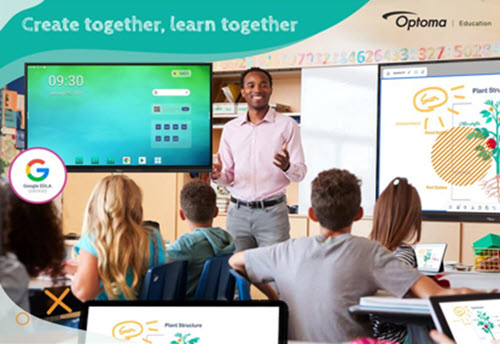
    FREMONT, CA – Optoma, a world-leading provider of visual solutions, today announced its latest Creative Touch 3-Series Interactive Displays designed to empower educators and business professionals with new tools and features to enhance learning, make presentations more effective, and increase collaboration in classrooms, lecture halls, boardrooms, remote working and other business environments.

    With Google’s Enterprise Device Licensing Agreement (EDLA) Certification and added functionality, the new 3-Series empowers professionals and educators to deliver dynamic and impactful content by providing cutting-edge tools that streamline management and elevate engagement. The advanced capabilities of the new 3-Series simplify planning and workflow through wireless collaboration, screen sharing, and innovative meeting solutions in both corporate and educational environments alike, all packed into a robust yet user-friendly platform.

    The 3-Series: Purpose-Built for Corporate and Education Environments

    New features and key highlights include:

    Google EDLA Certification: Ensures compatibility and optimized performance with thousands of educational applications and services available directly from the pre-installed Google Play Store allowing users to experience the full Google Suite for real-time collaboration from practically anywhere in the world.  Without compatibility issues or the hassle of connecting an external PC, users can easily access the entire suite of Google-based applications they are accustomed to – including Google Drive, Google Docs, YouTube, and more!

    The Optoma Solution Suite (OSS®): User-friendly software featuring Artificial Intelligence (AI) enabled tools, such as Sticky Notes* and AI Handwriting Recognition, the OSS package also includes:

    • Whiteboard: Unleash creativity through a digital whiteboard packed with tools that make learning and sharing ideas engaging – facilitating collaboration in real-time from anywhere.
      • Smart Sketch tool is ideal for drawing diagrams as it recognizes shapes and drawings and converts them into clipart images.
      • Floating Toolbar and Infinity Canvas allow you to seamlessly switch between tools to suit your tasks with a virtually limitless writing space.
      • Innovative Annotation and Highlighter Tools make underlining key points or annotating complex diagrams a breeze.
    • File Manager: Easily save, organize, or move files from local storage to networkable storage or to popular cloud services in seconds.
    • Display Share: Connect any device to wirelessly broadcast, share, or stream your content to the big screen. Bringing your own device has never been easier.

    Exceptional Performance: Seamless performance with an 8-core processor, Android 14 OS, and Zero Bonding screen for that natural writing experience.

    “We are excited to announce our new 3-Series and partnership with Raptor Technologies which truly embodies our commitment to supporting education through cutting-edge visual solutions, enhanced software packages and safety and security,” said Maria Repole, Head of Marketing at Optoma.

    A value-added solution, Optoma Management Suite (OMS®) is available out of the box on the 3-Series Interactive Displays, with a free trial available.** OMS offers IT administrators and technicians a real time remote platform to monitor, manage, diagnose, and update multiple or entire fleets of displays simultaneously that are either on the same network or connected through the cloud. OMS makes it easy to broadcast emergency messages, alerts, or announcements across displays worldwide.

    Optoma is thrilled to partner with Raptor® Technologies, the leading innovator in school safety solutions, redefining the landscape of school security with its Raptor School Safety Software Suite. By integrating Raptor’s software with Optoma’s interactive displays, school administrators and students can receive real-time alerts and emergency notifications using CAP protocols to improve the overall safety of the school.

    To experience a demonstration and learn more about Optoma’s new Creative Touch 3-Series Interactive Displays, please schedule a demo or visit: https://www.optomausa.com/products/interactive-flat-panel-displays-3-series/education https://www.optomausa.com/products/interactive-flat-panel-displays-3-series/corporate

    *Some AI features may require the use of an Optoma (OSS) account.

    **Free trial licenses are available for a limited time. Please register your OMS® Cloud account at https://oms.optoma.com or speak with your local representative.

    OMS and OSS are registered trademarks of Optoma Corporation

    DLP is a registered trademark of Texas Instruments

    About Optoma Technology, Inc.  

    Optoma combines cutting-edge technology and innovation to deliver remarkable visual display products designed to connect audiences with engaging video experiences. From the company’s ProScene projectors to its Creative Touch interactive, Professional LCD and LED displays, Optoma’s suite of products can meet the demands of nearly any professional environment, including conference rooms and classrooms, digital signage, corporate, houses of worship, retail, simulation environments and control rooms. Optoma Technology is the U.S. headquarters for The Optoma Group, with continental headquarters also in Europe and Asia. For more information, visit optomausa.com.   

    eSchool News Staff
    Latest posts by eSchool News Staff (see all)

    Source link

  • How 4 districts use AI tools to transform education

    How 4 districts use AI tools to transform education

    Key points:

    • School districts turn to AI to improve personalized education for students
    • With AI coaching, a math platform helps students tackle tough concepts
    • 5 practical ways to integrate AI into high school science
    • For more news on AI in education, visit eSN’s Digital Learning hub

    Simply put, AI can do a lot–it can personalize learning, help students expand on ideas for assignments, and reduce time spent on administrative tasks, freeing up educators to spend more time on instruction.