Tag: Google

  • Transform Your Classroom with Google Workspace AI Tools

    Transform Your Classroom with Google Workspace AI Tools

    The 2025-2026 school year brought a wave of powerful AI-enhanced tools to Google Workspace for Education. These aren”t just shiny new features—they’re practical classroom tools designed to save you time, personalize learning, and unlock student creativity. Best of all? Most are free for educators and students. Now that 2026 is upon us, I am excited to share with you some of my favorite new features that can be used in your classroom with your students. If you are already using these, I’d love to hear from you and learn how you are exploring AI and Google Workspace in your classrooms.

    Let’s walk through the standout Google features you should try with your students this year.

    Google Gemini for Education: Your AI Teaching Assistant

    Google Gemini isn’t just another chatbot. It’s an AI assistant built directly into the Google apps you already use—Docs, Slides, Sheets, Gmail, and Classroom. No more copying and pasting between tabs.

    • Why it matters: Gemini 2.5 Pro incorporates LearnLM, making it the world’s leading model for learning. It’s purpose-built for education with enterprise-grade data protection. Your data isn’t reviewed or used to train AI models.
    • Try this on Monday: Ask Gemini to “Create a lesson plan on photosynthesis aligned to NGSS standards” or “Generate a 25-question multiple choice practice exam from this syllabus.”

    Key Features for K-12 Classrooms:

    Deep Research — Students can research complex topics and receive synthesized reports with sources and citations in minutes. Instead of spending hours searching, they get a comprehensive report they can then explore further.

    Gemini Canvas — Create quizzes, practice tests, study guides, and visual timelines in one interactive space. Go from blank slate to dynamic preview in minutes. Students can build interactive prototypes and code snippets without knowing how to code.

    Gemini Live — Students can talk through complex concepts, get real-time help, and even share their screen or camera for personalized feedback on problem sets.

    What Are Google Gems?

    Think of a Gem as a specialized AI assistant you create for a specific purpose. Instead of writing the same prompt over and over in Gemini, you build a Gem once with custom instructions, and it becomes your go-to expert for that task.

    The difference: Regular Gemini is a generalist. A Gem is a specialist.

    For example, instead of typing “Create a Jeopardy game about the water cycle for 5th grade” every time you need a review game, you create a “Jeopardy Game” Gem that already knows your grade level, subject area, and preferred format. Then you just give it the topic.

    Creating Custom Gems: Build Your Own AI Experts

    Once you’re comfortable with Gemini, Google Gems let you create custom AI assistants tailored to your classroom needs.

    How it works: Give Gemini instructions, examples, and resources so it behaves exactly how you need it to. Upload unit plans, pacing guides, rubrics, or anchor texts so your Gem can reference them when creating content.

    Teacher-facing Gems:

    • Lesson Plan Generator — Aligned to your specific standards and teaching style
    • Parent Communicator — Drafts emails that match your tone and school policies
    • Emergency Sub Plan — Creates ready-to-go activities when you’re out sick
    • Standards Unpacker — Breaks down complex standards into teachable chunks

    Student-facing Gems: Create a Gem and share it with your class through Google Classroom. Students interact with your custom AI expert independently.

    • AI Tutor — Provides step-by-step help without giving away answers
    • Writing Coach — Gives feedback on essays and helps students revise
    • Study Partner — Creates practice questions from their notes
    • Career Explorer — Helps students research potential career paths

    EduGems: Pre-Made Gems by Eric Curts

    Don’t want to build Gems from scratch? Eric Curts (Control Alt Achieve) created EduGems—a growing library of ready-to-use Gems organized by category.

    How to use EduGems:

    1. Visit edugems.ai
    2. Browse by category or search for what you need
    3. Click any Gem to see details
    4. Click “Use” to open it in Gemini, or “Copy” to customize it
    • 🧑‍🏫 AI Tutor — Guides students through problems with questions, not answers. Great for homework help and independent practice.
    • 🎭 Reader’s Theater — Converts stories or historical events into scripts students can perform. Brings content to life through drama.
    • ❓ Jeopardy Game — Creates Jeopardy-style review games on any topic. Perfect for test prep and engagement.
    • 🤔 Student Brainstorming — Helps students generate and organize ideas for projects and writing assignments.
    • 💼 Career Explorer — Students explore career paths, learn about required education, and discover related occupations.
    • 📋 Lesson Plan — Generates complete lesson plans with objectives, activities, and assessments.
    • 📦 Standards Unpacker — Takes complex standards and breaks them into clear learning targets.
    • 🚨 Emergency Sub Plan — Creates complete sub plans with activities, materials, and instructions.
    • 🔀 Re-level Text — Adjusts reading level of any text for differentiation.
    • 📊 Assessment Data Analyzer — Analyzes assessment results and suggests targeted interventions.

    EduGems Categories:

    • Curriculum & Lesson Design (13 Gems) — Lesson plans, unit plans, choice boards, station rotations
    • Student Activities (11 Gems) — Games, simulations, debates, interviews
    • Assessment (15 Gems) — Quizzes, rubrics, test prep, data analysis
    • Support (14 Gems) — Accommodations, scaffolds, behavior plans, social stories
    • Literacy & Language (6 Gems) — Decodable texts, discussion prompts, sentence starters
    • Professional Tasks (11 Gems) — Newsletters, recommendation letters, PD plans

    Pro tip: Start with EduGems to see how effective Gems work, then customize them for your specific needs. You can also submit your own Gems to be added to the collection.

    Learn more: Watch Eric Curts’ complete Gems tutorial video or explore his AI resources at controlaltachieve.com.

    NotebookLM: Your AI Research Assistant

    Teachers and students work with overwhelming amounts of information. NotebookLM becomes an instant expert on whatever documents you upload.

    What makes it special: It grounds all responses in the specific documents you provide—no hallucinations, no random internet sources.

    Features you’ll use:

    • Audio Overviews — Turn lecture recordings, textbook chapters, or research papers into podcast-style audio summaries. Students can study anywhere—on the bus, at practice, during their commute.
    • Document synthesis — Upload PDFs, articles, unit plans, and curriculum resources. Ask questions and get answers pulled directly from your materials. Create summaries, study guides, and student-friendly resources instantly.
    • Student independence — Help students understand complex texts without constant teacher intervention. They can ask clarifying questions and get explanations grounded in their assigned readings.

    Google Vids: Create Professional Video Content in Minutes

    Student attention spans are shrinking, and teachers need tools to deliver content that sticks. Google Vids is Google’s answer: an AI-powered video creation tool that lives right in your Google Workspace.

    What Makes Google Vids Different?

    Think Google Slides turned 90 degrees—instead of slides arranged vertically, you work with scenes arranged horizontally. If you can use Google Slides, you can use Google Vids. But here’s the game-changer: it’s powered by Gemini AI.

    The “Help me create” feature: Type what you want to create (“Make a 3-minute tutorial on the water cycle for 5th grade”), and Google Vids generates a complete first draft in under 60 seconds—script, visuals, timing, transitions, and all. You customize from there instead of starting from scratch.

    Key Features Teachers Love:

    • AI-Powered Creation — Describe your video in a sentence, and Gemini builds the first draft for you. Add your own screenshots, adjust the timing, choose AI voice or record your own.
    • Convert Slides to Videos — Already have a Google Slides presentation? Import it into Vids and transform it into an engaging video with music, transitions, and narration in minutes.
    • Stock Media Library — Access thousands of royalty-free videos, images, music tracks, sound effects, GIFs, and stickers without leaving the platform.
    • Professional Templates — Start with beautifully designed templates for tutorials, announcements, student projects, and more.
    • Real-Time Collaboration — Work together on video projects just like you would in Google Docs. Perfect for group projects or co-planning with colleagues.
    • Seamless Google Classroom Integration — Assign videos as templates so each student gets their own copy. Review student work directly in Classroom and see their progress in real-time.

    For Teachers: Scale Your Impact

    Create professional development videos, flipped classroom content, and instructional materials in 20-30 minutes instead of 2-3 hours.

    Practical use cases:

    • Tool tutorials — Record once, share forever. Every new teacher gets instant access to training.
    • Flipped lessons — Create micro-lectures students watch at home, freeing up class time for hands-on work.
    • Lab procedures — Record safety demos and complex procedures students can review anytime.
    • Personalized feedback — Send quick video messages instead of lengthy written comments.
    • Professional development — Build a library of PD resources teachers can access on-demand.

    For Students: Voice, Choice, and Creativity

    Google Vids gives students an accessible way to demonstrate understanding without needing advanced tech skills.

    Student projects:

    • Video essays — Students explain their thinking, cite sources, and present arguments visually.
    • Book reports — Create “movie trailers” for novels or informational texts.
    • Science demonstrations — Record experiments with narration explaining the process.
    • Digital portfolios — Showcase learning growth throughout the year.
    • Public service announcements — Combine research with persuasive communication skills.

    Scaffolding tip: Start simple. Have students brainstorm in Google Keep, create a 3-slide presentation in Slides, import those slides into Vids, replace slides with video B-roll, add music and transitions. This progression teaches cross-tool workflows while building video literacy skills.

    Getting Started is Simple

    Access Google Vids at vids.google.com or vids.new. No software to download, no complicated setup.

    Three ways to start:

    1. Record — Easiest for screencasts and quick tutorials on Chromebooks
    2. Use templates — Start with professional designs for various purposes
    3. “Help me create” — Describe what you want and let AI build the first draft

    Videos save automatically to Google Drive. Share through Classroom, Drive links, or export as MP4 files.

    Why It Matters for K-12

    Google Vids democratizes video creation. Students and teachers without technical expertise or expensive software can now create professional-looking content. This levels the playing field and opens doors for creativity that were previously closed.

    Want the complete guide? Check out these in-depth resources:

    Getting Started: Your Action Plan

    This week:

    1. Visit gemini.google.com with your school Google account
    2. Ask it to create one lesson plan or assessment
    3. Try Deep Research on a topic you’re teaching next week

    This month:

    1. Create your first custom Gem for a unit you teach frequently
    2. Have students upload their notes to NotebookLM and create an Audio Overview
    3. Record one instructional video in Google Vids

    This semester:

    1. Share the college student offer with your seniors
    2. Build a library of custom Gems for different units
    3. Let students create their own Gems as study partners
    4. Assign a Google Vids project—have students create a 2-minute video explaining a concept, book report trailer, or science demonstration

    One Important Reminder

    With all these powerful AI tools at our fingertips, don’t forget that the most meaningful learning still happens through conversation, hands-on exploration, and human connection. Technology should enhance—not replace—the relationships and dialogue that make your classroom special.

    Use these tools to reclaim your time and energy so you can focus on what matters most: your students.

    Frequently Asked Questions

    Want to Learn More?

    Take a free course: Getting Started with Google AI from Google for Education

    Explore use cases: 100+ ways to use Gemini in education

    Deep dive: Teaching Channel’s course 5381: Teaching with Google’s AI Tools covers Gemini, NotebookLM, Google Vids, and image creation


    Ready to try one of these features? Pick just one from this list and test it this week. Reply and let me know which one you chose and how it went.

    • Jeff Bradbury, your digital learning coach 🎸

    Don’t Miss the Next EdTech Breakthrough

    Google isn’t done innovating, and neither are dozens of other EdTech companies building tools specifically for K-12 educators. New features drop every month—some game-changers, some duds.

    I test them all so you don’t have to.

    Join 20,000+ educators who get my weekly newsletter with:

    ✅ Early access to tutorials on new classroom tech

    ✅ Honest reviews (I’ll tell you when something isn’t worth your time)

    ✅ Ready-to-steal lesson ideas and project templates

    ✅ Time-saving workflows that actually work in real classrooms

    No fluff. No vendor pitches. Just practical strategies from a teacher who’s actually using these tools with students.

    Subscribe to the TeacherCast Newsletter →

    Upgrade Your Teaching Toolkit Today

    Get weekly EdTech tips, tool tutorials, and podcast highlights delivered to your inbox. Plus, receive a free chapter from my book Impact Standards when you join.


    Discover more from TeacherCast Educational Network | Developing Standards-Based Instructional Technology Integration

    Subscribe to get the latest posts sent to your email.
    Source link

  • WOW Split View in Google Chrome

    WOW Split View in Google Chrome

    The Video Notebook

    We often watch videos to learn. Open a YouTube video on the left and Google Keep or Docs on the right. You can type your notes while the video plays. You do not have to minimize the video or switch tabs to write down a thought.

    The Translation Station

    For students needing language support, open the student text on the left and Google Translate on the right. You can copy a phrase you do not understand and paste it into the translator. You can write your feedback in English and translate it to the student’s home language quickly.

    The Collaborative Command Center

    Group work can get messy. Have students open their group project rubric on the left and their shared presentation on the right. They can check their work against the criteria as they build. This keeps the collaboration focused on the learning goals.

    The Parent Communication Hub

    Accuracy matters when emailing parents. Open your student information system on the left and your email on the right. You can reference specific data points like attendance or grades while you type. This ensures your communication is clear and fact based.

    The Research Compare And Contrast

    Deepen analysis skills with this strategy. Ask students to open two different articles about the same topic. Put one on the left and one on the right. Have them highlight differences in the reporting. The visual proximity makes it easier to spot bias or conflicting details.

    The Digital Textbook Reader

    Students often struggle to answer questions based on a text. Have them open their digital textbook on the left and their assignment document on the right. They can refer back to the text to find evidence for their answers without losing their place in the assignment.

    Student Engagement Strategy

    Students struggle with digital organization. They often have too many tabs open and get distracted. Teach them to use Split View to create a focused workspace.

    Tell them to open their reading assignment on the left and their response journal on the right. This visual setup signals to their brain that it is time to work. It reduces the temptation to open unrelated tabs because the screen feels full. You give them a tool to manage their own attention.

    Source link

  • Inside Texas A&M University’s partnership with Google for AI training

    Inside Texas A&M University’s partnership with Google for AI training

    This audio is auto-generated. Please let us know if you have feedback.

      A long line of students wrapped around Texas A&M University’s academic plaza in early October to receive free training from Google employees on how to use the company’s artificial intelligence tools, such as its chatbot, Gemini, and its research assistant, NotebookLM.  

    That same day, about 400 faculty members huddled in a campus building for deeper training from Google on how they could use AI tools to improve teaching and learning in their classrooms and how to effectively and ethically help their students use them as well, said Shonda Gibson, Texas A&M System’s chief transformation officer.

    The daylong event was part of Google’s three-year $1 billion initiative to support AI education and job training programs throughout the U.S. The initiative, which launched in August, supports the tech giant’s AI for Education Accelerator that provides higher education students and educators with free access to tools and training and aims to create a community of institutions sharing best practices.

    Texas A&M is one of over 200 higher ed institutions that have signed up for Google’s accelerator, according to Lisa Gevelber, founder of Grow with Google, the company’s workforce development campaign.  They include higher ed systems like the University of Texas and University of North Carolina, as well as large institutions like the University of Pennsylvania, University of Michigan and University of Virginia

    “Every student deserves access to the digital tools and the skills and training to set them up for success. And this is our commitment to supporting that,” said Gevelber

    The initiative comes as colleges race to ensure their students are prepared to enter a workforce that is becoming increasingly shaped by AI. 

    “It’s not just about using the tools,” said Gibson. “We really want our students to have the best experience possible so that they’re fully prepared whenever they leave us to go on and do whatever they’re going to do in their future.”

    Professors that integrate AI into their lessons should follow guidance on how to use it to further student learning, said Alexa Joubin, director of George Washington University’s Digital Humanities Institute. 

    Without that guidance, students risk using AI as a shortcut by having it summarize information for them instead of actually reading the materials presented and experiencing their lessons, said Joubin

    Meanwhile, recent research suggests AI could be detrimental to students’ skills and outcomes.

    A Massachusetts Institute of Technology study released in June found that using AI tools to write essays can impact critical thinking skills and lead to lower cognitive performance. 

    Over four months, study participants who used AI tools to write essays underperformed at “neural, linguistic, and behavioral levels” compared with those who didn’t, raising concerns about the long-term educational implications of relying on the technology, the study found. 

    Students are essentially “outsourcing key cognitive tasks to AI,” said Joubin

    The $1 billion initiative

    The Texas A&M System joined Google’s initiative, Gibson said, because officials viewed the tech behemoth as the only company offering assistance and guidance at that level. 

    Gibson also pointed out the free access to normally paid versions of Google tools, which will be available over the next two years to students attending the system’s 12 institutions

    Google’s tools can act as a personal tutor for students to help them work through problems and learn material in a customized way, said Gevelber

    Gemini, for example, has a guided learning feature that can accommodate their learning needs, said Gevelber. The guided learning tool, for example, asks students probing and open-ended questions to spark discussions and dig deeper into the subjects, and it also introduces images, diagrams, videos and interactive quizzes to help them learn topics. 

    Source link

  • Google to Spend $1B on AI Training in Higher Ed

    Google to Spend $1B on AI Training in Higher Ed

    Phiwath Jittamas/iStock/Getty Images Plus

    Google’s parent company announced Wednesday that it’s planning to spend $1 billion over the next three years to help colleges teach and train students about artificial intelligence.

    Google is joining other AI companies, including OpenAI and Anthropic, in investing in AI training in higher education. All three companies have rolled out new tools aimed at supporting “deeper learning” among students and made their AI platforms available to certain students for free.

    As of Wednesday, Google is making its AI Pro plan available for free to any student who is 18 years or older and lives in the United States or in Brazil, Indonesia, Japan or South Korea. That plan includes Google’s more advanced chat bot Gemini 2.5 Pro.

    The $1 billion will go to “AI literacy programs, research funding and cloud computing resources,” according to the announcement. The company also is offering free AI training to every college student as part of its new Google AI for Education Accelerator. More than 100 public colleges have signed on already, the company said.

    “Today’s students are the first true generation of ‘AI natives,’” Google CEO Sundar Pichai wrote. “They’ll use these models in ways none of us can predict, whether it’s learning things in new ways or creating new types of jobs we haven’t imagined yet. It’s still early days and there will be important questions ahead. That’s why we’re working with institutions across higher education to ensure student success.”

    Source link

  • 10 (and counting…) Google goodies for your classroom

    10 (and counting…) Google goodies for your classroom

    Key points:

    Google enthusiasts, unite.

    During an ISTELive 25 session, Dr. Wanda Terral, chief of technology for Tennessee’s Lakeland School System, took attendees through a growing list of Google tools, along with some non-Google resources, to boost classroom creativity, productivity, and collaboration.

    Here are just 10 of the resources Terral covered–explore the full list for more ideas and resources to increase your Google knowledge.

  • Optoma Announces Launch of the New 3-Series Interactive Displays with Google Certification and AI-Enabled Tools

    Optoma Announces Launch of the New 3-Series Interactive Displays with Google Certification and AI-Enabled Tools

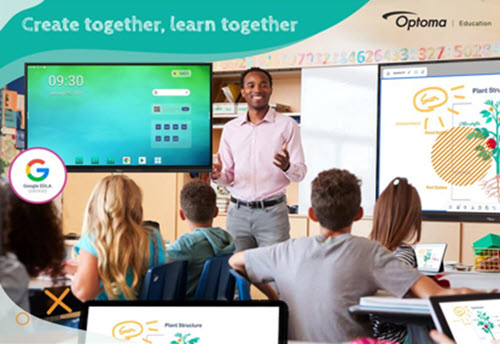
    FREMONT, CA – Optoma, a world-leading provider of visual solutions, today announced its latest Creative Touch 3-Series Interactive Displays designed to empower educators and business professionals with new tools and features to enhance learning, make presentations more effective, and increase collaboration in classrooms, lecture halls, boardrooms, remote working and other business environments.

    With Google’s Enterprise Device Licensing Agreement (EDLA) Certification and added functionality, the new 3-Series empowers professionals and educators to deliver dynamic and impactful content by providing cutting-edge tools that streamline management and elevate engagement. The advanced capabilities of the new 3-Series simplify planning and workflow through wireless collaboration, screen sharing, and innovative meeting solutions in both corporate and educational environments alike, all packed into a robust yet user-friendly platform.

    The 3-Series: Purpose-Built for Corporate and Education Environments

    New features and key highlights include:

    Google EDLA Certification: Ensures compatibility and optimized performance with thousands of educational applications and services available directly from the pre-installed Google Play Store allowing users to experience the full Google Suite for real-time collaboration from practically anywhere in the world.  Without compatibility issues or the hassle of connecting an external PC, users can easily access the entire suite of Google-based applications they are accustomed to – including Google Drive, Google Docs, YouTube, and more!

    The Optoma Solution Suite (OSS®): User-friendly software featuring Artificial Intelligence (AI) enabled tools, such as Sticky Notes* and AI Handwriting Recognition, the OSS package also includes:

    • Whiteboard: Unleash creativity through a digital whiteboard packed with tools that make learning and sharing ideas engaging – facilitating collaboration in real-time from anywhere.
      • Smart Sketch tool is ideal for drawing diagrams as it recognizes shapes and drawings and converts them into clipart images.
      • Floating Toolbar and Infinity Canvas allow you to seamlessly switch between tools to suit your tasks with a virtually limitless writing space.
      • Innovative Annotation and Highlighter Tools make underlining key points or annotating complex diagrams a breeze.
    • File Manager: Easily save, organize, or move files from local storage to networkable storage or to popular cloud services in seconds.
    • Display Share: Connect any device to wirelessly broadcast, share, or stream your content to the big screen. Bringing your own device has never been easier.

    Exceptional Performance: Seamless performance with an 8-core processor, Android 14 OS, and Zero Bonding screen for that natural writing experience.

    “We are excited to announce our new 3-Series and partnership with Raptor Technologies which truly embodies our commitment to supporting education through cutting-edge visual solutions, enhanced software packages and safety and security,” said Maria Repole, Head of Marketing at Optoma.

    A value-added solution, Optoma Management Suite (OMS®) is available out of the box on the 3-Series Interactive Displays, with a free trial available.** OMS offers IT administrators and technicians a real time remote platform to monitor, manage, diagnose, and update multiple or entire fleets of displays simultaneously that are either on the same network or connected through the cloud. OMS makes it easy to broadcast emergency messages, alerts, or announcements across displays worldwide.

    Optoma is thrilled to partner with Raptor® Technologies, the leading innovator in school safety solutions, redefining the landscape of school security with its Raptor School Safety Software Suite. By integrating Raptor’s software with Optoma’s interactive displays, school administrators and students can receive real-time alerts and emergency notifications using CAP protocols to improve the overall safety of the school.

    To experience a demonstration and learn more about Optoma’s new Creative Touch 3-Series Interactive Displays, please schedule a demo or visit: https://www.optomausa.com/products/interactive-flat-panel-displays-3-series/education https://www.optomausa.com/products/interactive-flat-panel-displays-3-series/corporate

    *Some AI features may require the use of an Optoma (OSS) account.

    **Free trial licenses are available for a limited time. Please register your OMS® Cloud account at https://oms.optoma.com or speak with your local representative.

    OMS and OSS are registered trademarks of Optoma Corporation

    DLP is a registered trademark of Texas Instruments

    About Optoma Technology, Inc.  

    Optoma combines cutting-edge technology and innovation to deliver remarkable visual display products designed to connect audiences with engaging video experiences. From the company’s ProScene projectors to its Creative Touch interactive, Professional LCD and LED displays, Optoma’s suite of products can meet the demands of nearly any professional environment, including conference rooms and classrooms, digital signage, corporate, houses of worship, retail, simulation environments and control rooms. Optoma Technology is the U.S. headquarters for The Optoma Group, with continental headquarters also in Europe and Asia. For more information, visit optomausa.com.   

    eSchool News Staff
    Latest posts by eSchool News Staff (see all)

    Source link

  • How 4 districts use AI tools to transform education

    How 4 districts use AI tools to transform education

    Key points:

    • School districts turn to AI to improve personalized education for students
    • With AI coaching, a math platform helps students tackle tough concepts
    • 5 practical ways to integrate AI into high school science
    • For more news on AI in education, visit eSN’s Digital Learning hub

    Simply put, AI can do a lot–it can personalize learning, help students expand on ideas for assignments, and reduce time spent on administrative tasks, freeing up educators to spend more time on instruction.